Settings > API is where your organization connects Fomr to scripts, automations, and other tools. It shows how much of your plan’s API allowance is left, who on your team is using it, and the access tokens that let those tools act on your behalf.
Who can use it
Section titled “Who can use it”Creating tokens needs the Personal Access Token permission. The Admin role includes it and the Member role does not. Members without it can still open Settings > API to see their own API usage.
Admins also see every member’s tokens and usage. Everyone else sees only their own.
Track API usage
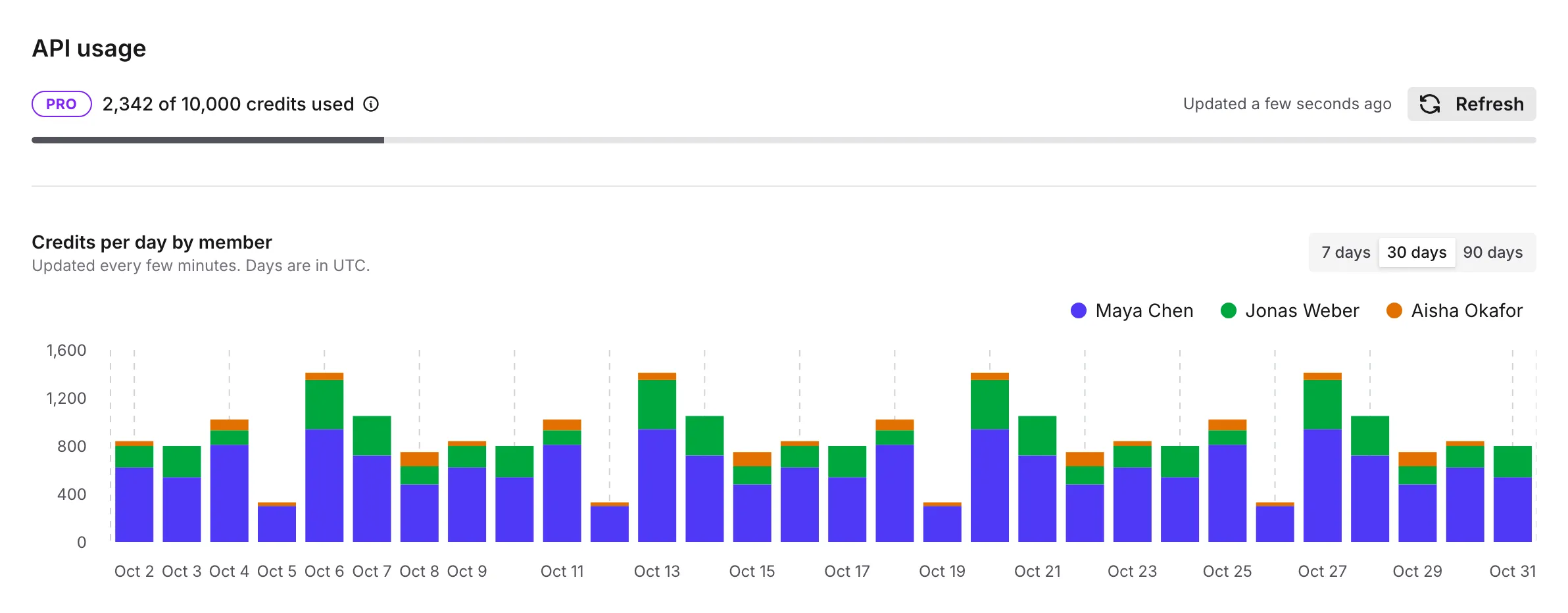
Section titled “Track API usage”API usage sits at the top of the page. It shows your plan and how many credits the organization has used of its allowance. Every token in the organization spends from the same allowance.
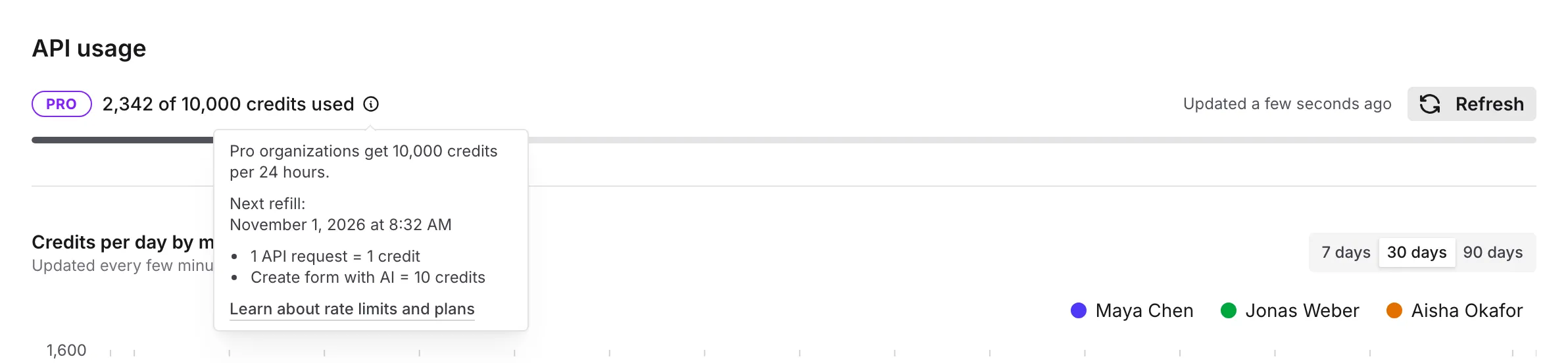
- What a call costs. One API request costs 1 credit. Creating a form with AI costs 10 credits.
- When it refills. Select the info icon next to the credits to see your plan’s allowance, the next refill time, and the credit costs.
- Usage over time. The bar chart shows credits spent per day for the last 7, 30, or 90 days. Admins see each member as a separate color; members see only their own bars. The chart is refreshed every few minutes, so the most recent calls can take a moment to appear. Days follow UTC.
- Refresh. Select Refresh to read the live numbers again.
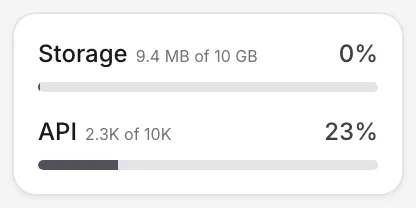
The usage card at the bottom of the sidebar shows the same API usage under storage. It turns amber, then red, as the organization gets close to its allowance. Click the API meter to open Settings > API.
When the allowance runs out, API calls pause until the next refill. On Free, upgrading to Pro lifts the pause right away. Creating, rotating, and revoking tokens keeps working while calls are paused.
Create an API access token
Section titled “Create an API access token”-
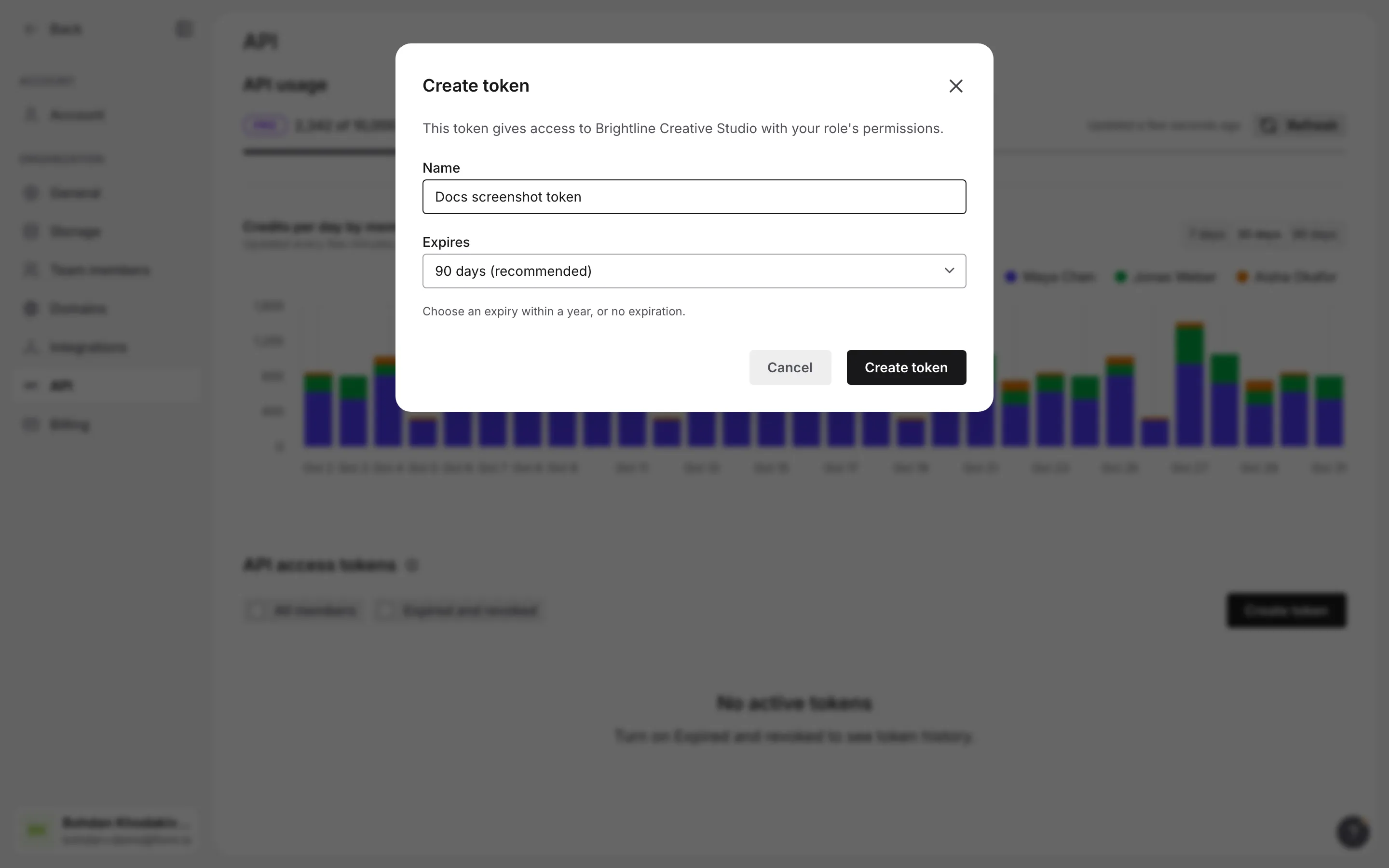
Open Settings > API and select Create token
-
Keep the suggested name or enter one that says where the token will be used, such as “Zapier” or “Nightly export”
-
Choose how long the token lasts. The default is 90 days, and you can pick a date up to a year away. Choose No expiration only for tools you will remember to revoke
-
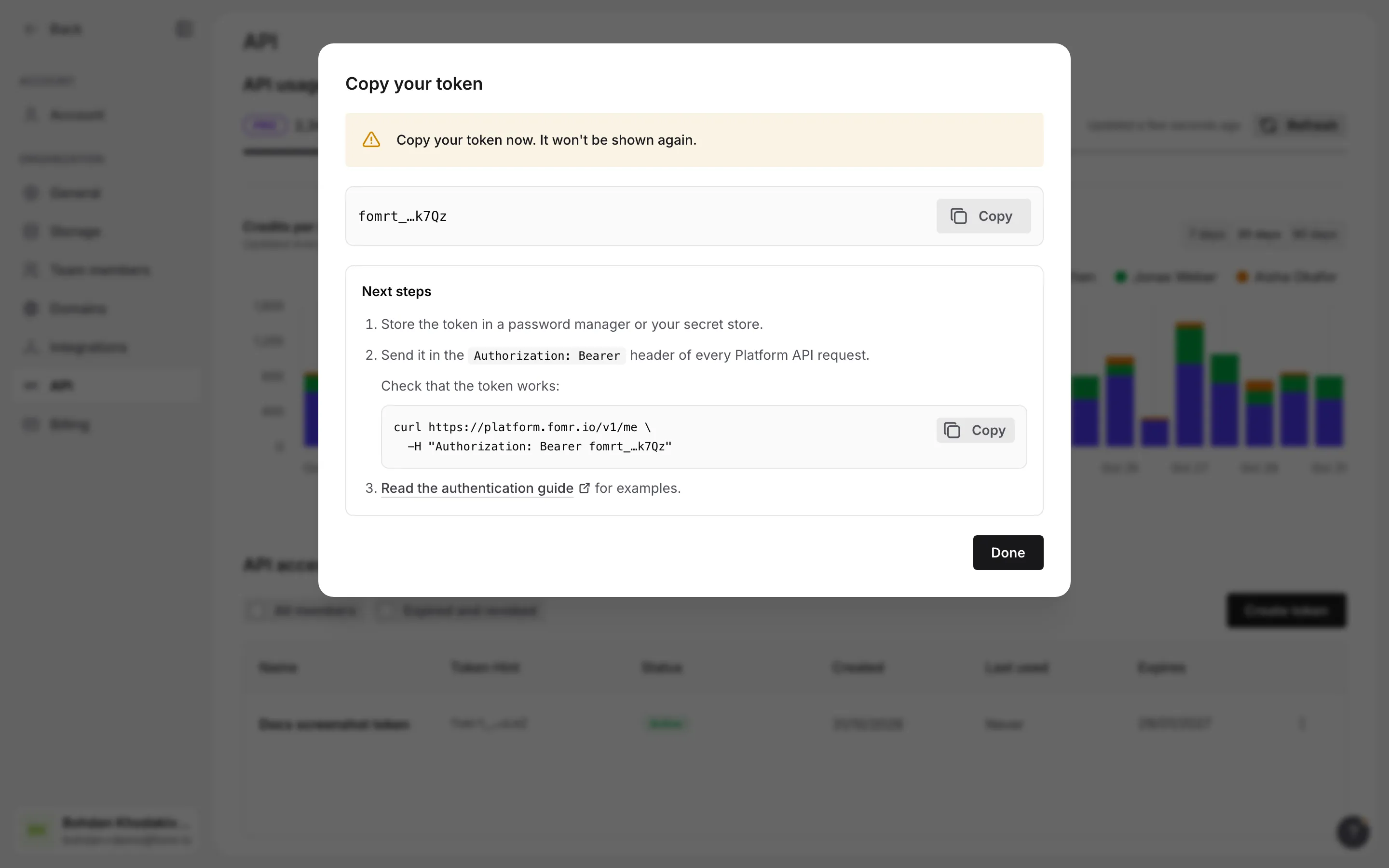
Select Create token, copy the token, store it somewhere safe, and select Done
Fomr shows the full token only once. Afterwards the list shows only its last four characters. If you lose a token, create a new one. The confirmation also includes a ready-to-copy command that checks the new token works.
Each member can have up to 10 active tokens.
Manage your tokens
Section titled “Manage your tokens”API access tokens lists your tokens with their status, creation date, last use, and expiry. A token expiring within a week is flagged in the list.
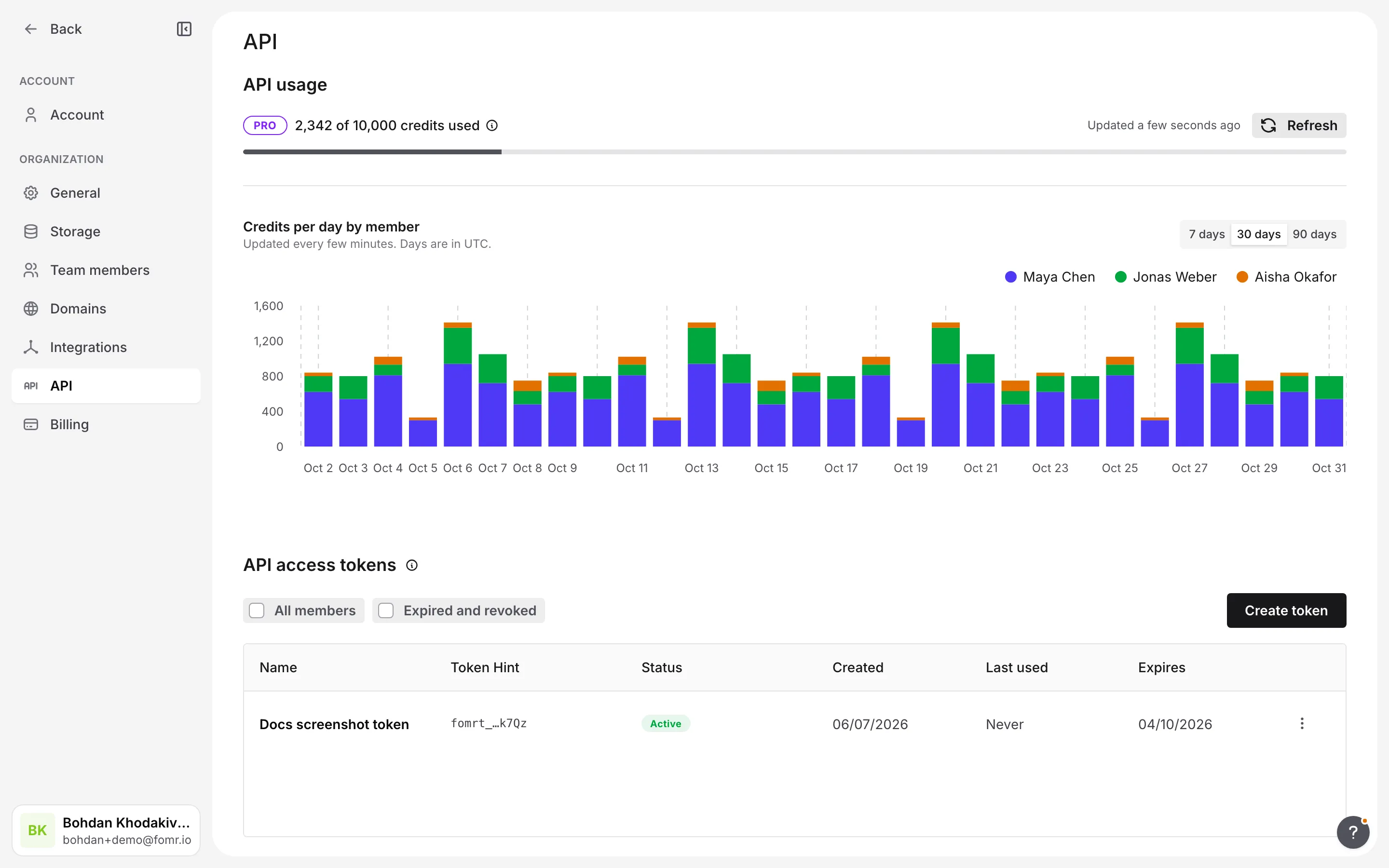
- Expired and revoked. Turn on this filter to see tokens that no longer work.
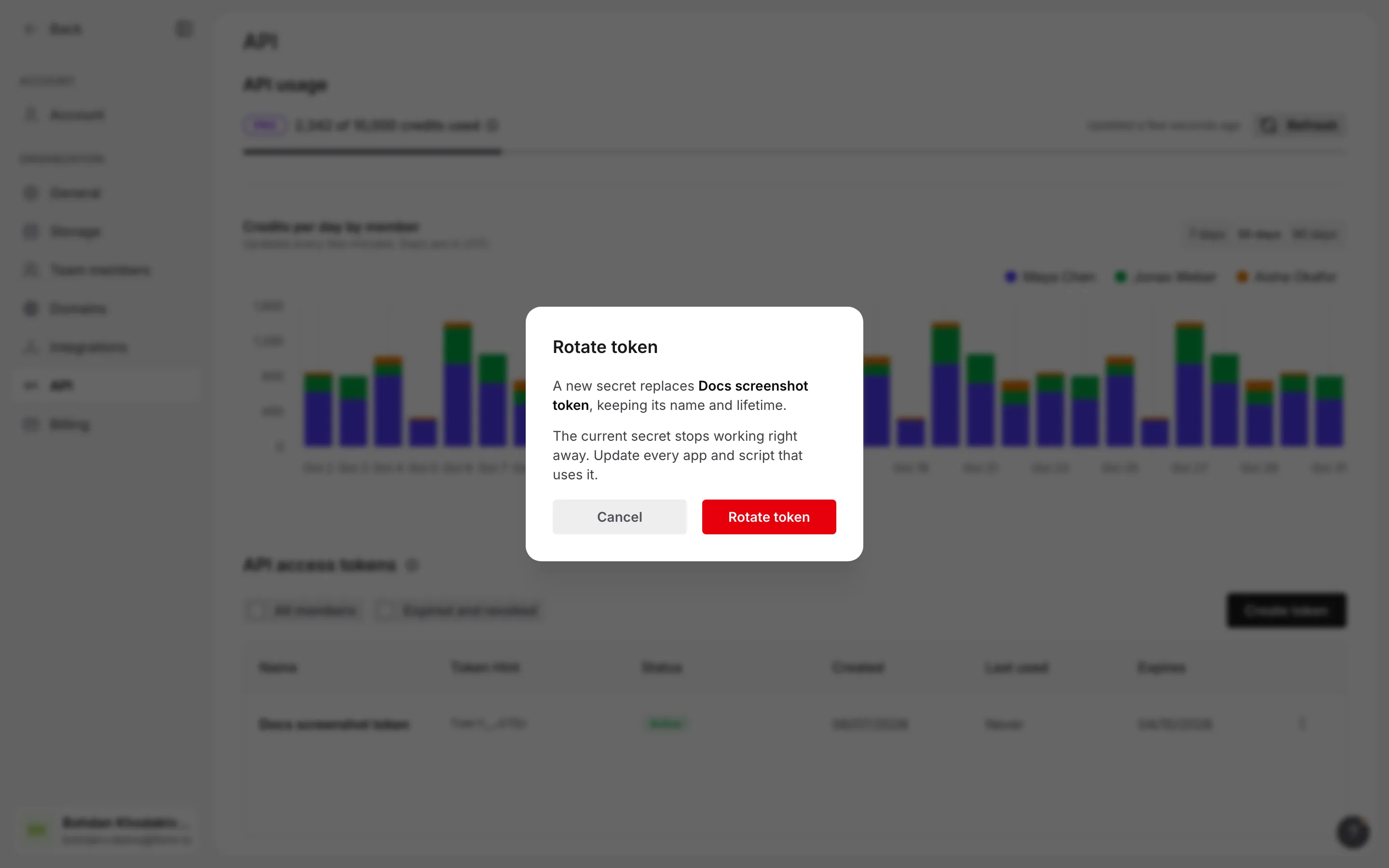
- Rotate. Open a token’s actions menu and select Rotate to replace a token that may have leaked. The old token stops working immediately, and a new one with the same name and lifetime is shown once.
- Revoke. Select Revoke to stop a token for good. This can’t be undone.
Review your team’s tokens
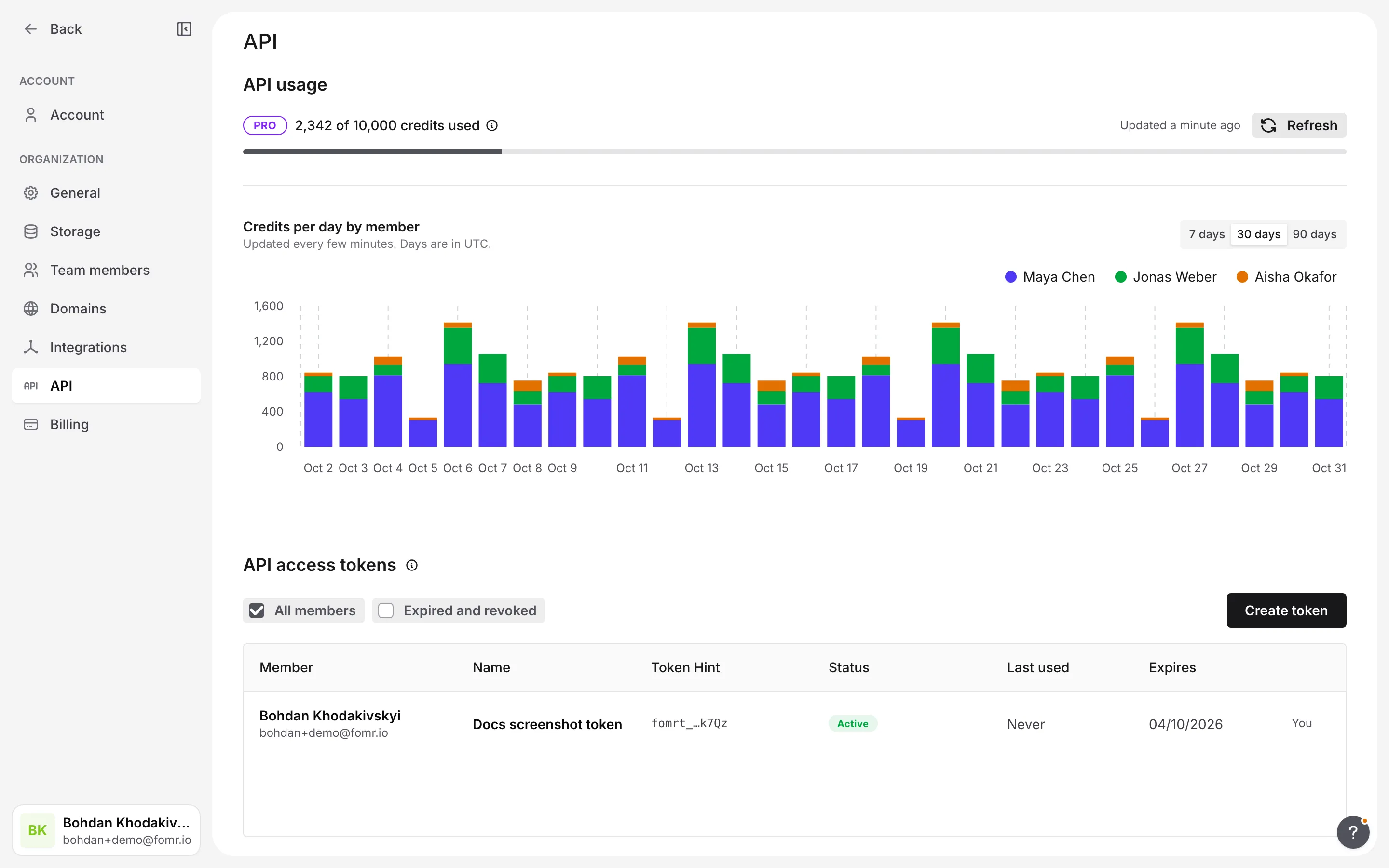
Section titled “Review your team’s tokens”Admins can turn on All members to see every token in the organization, who owns it, and when it was last used. An admin can revoke any member’s token but can never see its value.
A member’s tokens are revoked automatically when they leave the organization, are removed or blocked, or their account is deleted.